
Important Note: Only Admin users can create team members. Please reach out to your Snapdocs Admin for assistance.
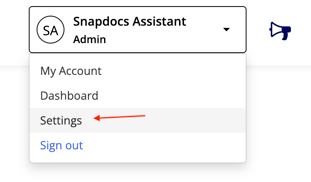
Step 1: Log into Snapdocs and then navigate to your Settings page.
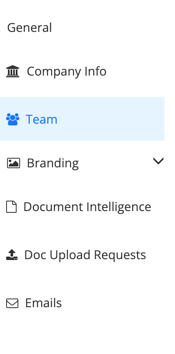
Step 2: Select the Team tab on the right hand side.
Step 3: Select + Add team member.

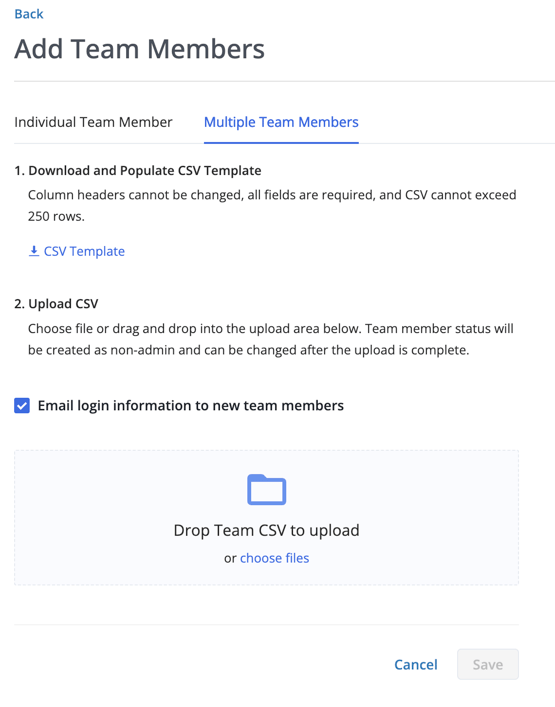
Step 4: Select the Multiple Team Members tab and then follow the instructions on the page.
It is important to note that the document you upload follows the following rules:
-
Headers must include the following: First Name, Last Name, Email, Access Level. Column headers cannot be changed and all fields are required.
- The document must be a CSV.
- CSV cannot exceed 250 rows.
Access Levels
View & Comment
-
Can only view a closing and write comments in the comments section.
Closing Editor
-
Closing Editors can only access and edit closings they've been assigned to.
Manager
-
Managers can view and edit all closings, but cannot change company settings.
Admin
-
Admins can change your company's settings, as well as view and edit all.