
User permissions
Access to a CD Balancing record is controlled by two separate things:
- Permission level — managed by an Admin, on your Team settings page.
- Record role — how a user is added to an individual CD Balancing record.
A user's permission level is not the same as their role on a record. This article covers both.
Where user permissions are managed
Users aren't managed inside CD Balancing. Your team is shared between CD Balancing and Snapdocs Closings — the same users and the same permission levels — and an Admin manages them from one settings page.
To get there from CD Balancing:
- Select Settings, then go to General > Users.
- In the Team section, select Manage users. The Team settings page opens in a new tab.
This is the same page and the same list of users whether CD Balancing is your only Snapdocs product or you also use Snapdocs Closings. A permission change applies to both products.
If you're a Manager: you can open CD Balancing settings and see the Team section only if it has been enabled by an Admin. However, only an Admin can add or remove users or change permission levels.
What are the available permissions?
|
Permission level |
CD Balancing settings |
Manage users |
Sees all records |
Full access to edit a record |
View and comment on a record |
|
Admin |
✓ |
✓ |
✓ |
✓ |
✓ |
|
Manager |
If enabled by an Admin |
✓ |
✓ |
✓ |
|
|
Closing Editor |
✓ |
✓ |
|||
|
View & Comment |
✓ |
How access works on a record
A user's permission level decides what they can do in CD Balancing generally. Adding them to a record's Closing Team panel is what connects them to that loan — and within a record, you can change any contact’s access without changing their permission level.
Lender contacts
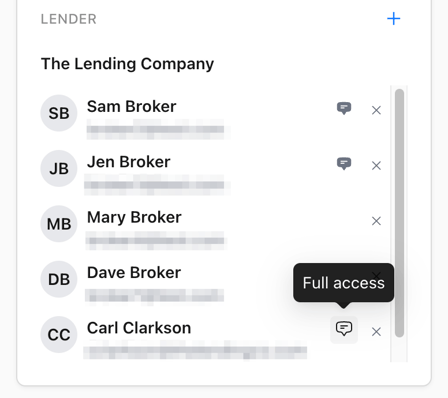
Anyone added to the Lender section starts with the access their permission level provides. Someone with Closing Editor permission gets full access to edit the record and post messages. Someone with View & Comment can read the record and comment, but not change the record.
The message icon next to a name shows which one they have: a shaded icon means View & Comment, while Full Access shows no icon until you hover over the area, revealing an outline. Anyone with full access to the record can change a contact's access: hover over the area to reveal the icon, then select it to switch between Full Access and View & Comment.
Settlement contacts
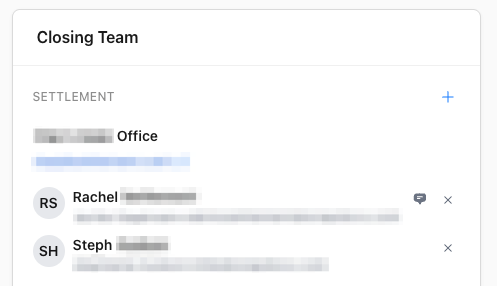
Anyone added to the Settlement section of the Closing Team panel gets full access to view and edit the record by default. The message icon next to a name shows their access level: a shaded icon means View & Comment, while Full Access shows no icon until you hover over the area, revealing an outline. Anyone with full access to the record can change a contact's access: hover over the area to reveal the icon, then select it to switch between Full Access and View & Comment.
Messaging
The Messaging panel on a CD Balancing record is how the lender and settlement communicate during balancing. Messages can be entered here, in addition replies sent to a message email sent by Snapdocs will also be present. Any communications outside the panel or Snapdocs generated message emails aren't captured on the record.
When a message is sent, an email notification goes to every contact in both the Lender and Settlement sections of the Closing Team panel.
Everyone added to a record has access to the Messaging panel.