
Auto-Accept Counter Offers lets a scheduling company automatically accept notary counter-bids that fall within specified fee limits. Counter-bids within limits are accepted without a person on the team having to review them. This feature only accepts an auto-assignable notary's offer.
Note: Only company team members with Admin permissions are able to access and edit your settings.
How to Access the Setting
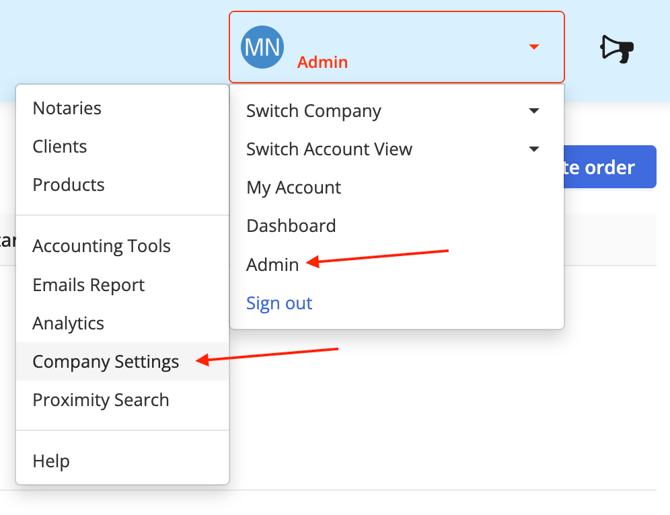
Step 1: Select your name box in the upper right hand corner in Snapdocs. Hover over the Admin option and then Select Company Settings.
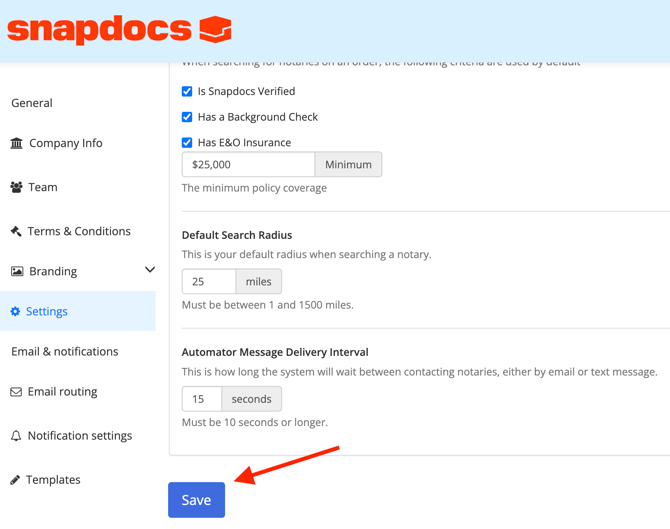
Step 2: Choose Settings on the menu to the left hand side.
Step 3: Under Enhanced Automation you will see the setting "Auto-accept notary counter offers." If the check box is blue this means your setting is turned on.
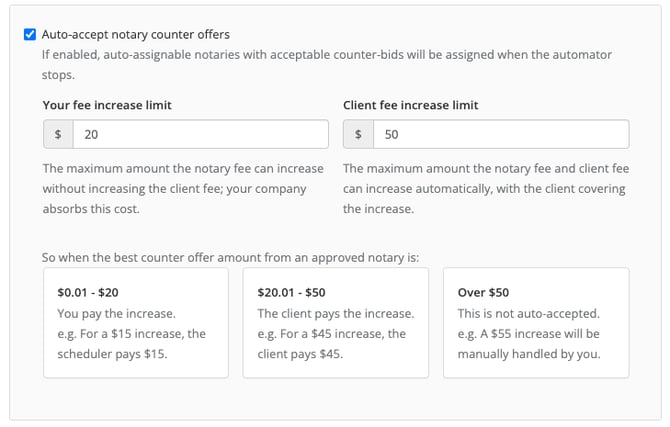
Step 4: Type in the amounts you want to set for your fee increase limit and client fee increase limits.
Step 5: Make sure to scroll to the bottom of the page and select Save.
What's New
|
Enhancement |
Summary |
|---|---|
|
Expanded Automator search |
The Automator can now reach out to up to 200 notaries before pausing (previously 60), when Auto-Accept Counter Offers is on. |
|
Lower message delivery interval floor |
The minimum Automator Message Delivery Interval is now 10 seconds (previously 15). |
|
Client fee increase limit (new) |
A new setting for how much of a counter-bid increase the client is willing to absorb without manual approval. |
|
Renamed setting |
"Acceptable Price Increase" is now "Your fee increase limit." |
|
Dynamic example tiles |
Live examples in the feature settings show how the two limits interact. |
|
Client Level Settings |
This feature can now be set at the client level. |
Automator Search Extended to 200 Notaries
When Auto-Accept Counter Offers is turned on, the Automator can now contact up to 200 notaries before it pauses. The previous limit was 60.
Why this changed: Reaching out to more notaries before evaluating and accepting counter-bids gives the Automator a larger pool of responses to evaluate, which improves the chances of finding an acceptable match without human involvement.
Important: The 200-notary limit applies only when the Auto-Accept Counter Offers setting is turned on. Companies with the feature off keep the existing limit of 60 before pausing.
Automator Message Delivery Interval
The minimum Automator Message Delivery Interval has been lowered from 15 seconds to 10 seconds.
Recommendation:
- Default (recommended for most customers): 20 seconds.
- Customers who enable auto-acceptance of counter-bids: Consider a shorter interval. A shorter interval reaches more notaries faster, which lets the Automator resolve more orders efficiently without manual help.
Fee Increase Limits
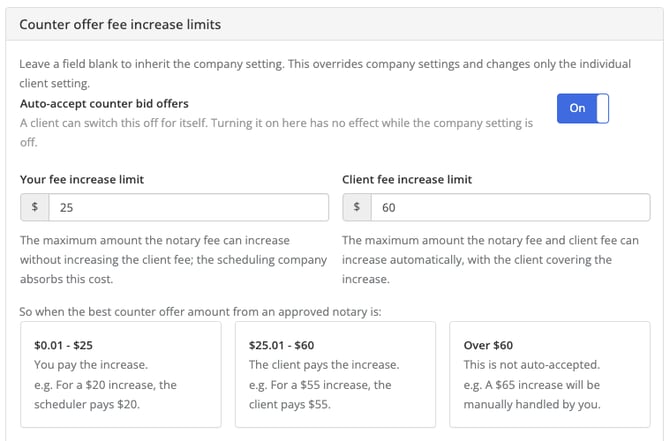
Two settings control how much of a counter-bid increase is accepted automatically, and who pays for it.
|
Setting |
What it controls |
|---|---|
|
Your fee increase limit (formerly "Acceptable Price Increase") |
The amount the scheduling company is willing to absorb without bringing a human into the loop to evaluate the counter-bid. |
|
Client fee increase limit (new) |
The amount the client is willing to have fees increased without someone on their team having to manually approve it. |
How the two fee increase limits work together
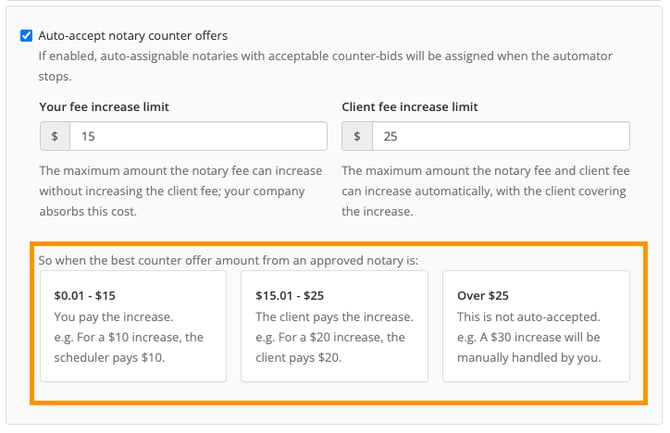
Example: Your fee increase limit = $15 and Client fee increase limit = $25.
|
Counter-bid increase |
Who pays |
Notary fee |
Client fee |
|---|---|---|---|
|
Up to $15.00 |
Absorbed entirely by the scheduling company |
Increased by the counter-bid amount (e.g., +$15 counter-bid adjustment) |
No change |
|
$15.01 to $25.00 |
Charged to the client in full |
Increased |
Increased |
|
Above $25.00 |
Above auto-accept limit, will not assign |
No change |
No change |
Dynamic example tiles
The feature settings include dynamic example tiles that show live examples of how the two settings interact, based on the values currently entered. Use them to confirm that the limits behave the way you intend before saving.
Renamed setting
"Acceptable Price Increase" has been renamed "Your fee increase limit." Its purpose is unchanged. Existing values carry over.
Client level setting
The Auto-Accept Counter Offers feature setting also exists at the client level.
Important Note: The client level setting always takes precedence over what is set at the company level.
In order to use the setting at the client level, it must be turned on at the company level (but limits can be left at $0 at the company level, should the scheduling company not want limits applied across clients).
Title Company Exception
Title companies do not charge client fees per order, so the Client fee increase limit does not apply to them.
If "Is Title company" is set to ‘Yes’ in Root for a company, that company will not see the Client fee increase limit option in its company settings.
Quick Reference
|
Setting |
Value |
|---|---|
|
Automator notary outreach limit (when this feature is on) |
Up to 200 (was 60) |
|
Message delivery interval minimum |
10 seconds (was 15) |
|
Message delivery interval default |
20 seconds |
|
Client fee increase limit visibility |
Hidden when "Is Title company" = Yes in Root |
FAQ and Troubleshooting
What's the difference between "Your fee increase limit" and "Client fee increase limit"?-
"Your fee increase limit" is the amount the scheduling company will absorb on its own, with no human review, and without an increase to client fees. "Client fee increase limit" is the amount the client has agreed to let fees go up without someone on their team manually approving it. The two limits work in tiers, so a counter-bid is covered by one or the other depending on its size.
-
It depends on the size of the counter-bid.
-
Using $15 for "Your fee increase limit" and $25 for "Client fee increase limit" as an example:
- Up to $15: The scheduling company absorbs it. The notary fee goes up by the counter-bid amount and the client fee doesn't change.
- $15.01 to $25: The client is charged in full. Both the notary fee and the client fee go up.
- The dynamic example tiles in the feature settings show this live for whatever values are entered.
-
The counter-bid isn't auto-accepted. It stays in the normal manual flow, so someone on the team has to review and accept or decline it.
-
Title companies don't charge client fees per order, so the setting is hidden for them. If "Is Title company" is set to Yes in Root for the company, the option won't appear in their company settings. This is expected behavior, not a bug. If the company isn't a title company, check that the flag in Root is set correctly.
-
The client-level setting always takes precedence over the company-level one. To use the setting at the client level, Auto-Accept Counter Offers must first be turned on at the company level. If a customer says the client-level setting isn't available, check the company-level toggle first.
Why is the Automator contacting more notaries than before?
-
With Auto-Accept Counter Offers on, the Automator can reach up to 200 notaries before pausing, up from 60. This gives it more responses to evaluate before accepting a counter-bid. Companies with the feature off still pause at 60.
Should the customer change the message interval?
-
The message interval can now go as low as 10 seconds.
-
The default of 20 seconds is still recommended, but customers using auto-accept may want a shorter interval so the Automator reaches more notaries faster.
-
A $0 limit means no counter-bid increase is automatically absorbed at that tier. At the company level, $0 is a valid setting when a scheduling company doesn't want limits applied across all clients and plans to set limits per client instead.
-
The feature must still be turned on at the company level for the client-level setting to work.