
To get to your Company Settings, select on Admin in the upper right corner, then select Company Settings in the drop down menu. You will be taken to your Company Info page where there is also a navigation bar on the left side of the screen. Select Settings in the General section.
Note: You must have Admin role permissions to access the Company Settings.
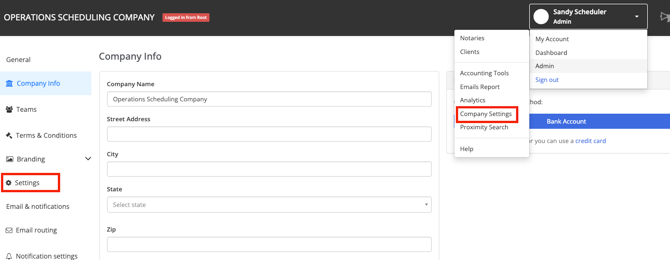
This section is where you can adjust many different settings, including your Enhanced Automation settings, Document Release settings, Verified Notary Preferences and Search Preferences.
If you scroll down past your Automation settings, you will find a number of other settings.
What each setting means
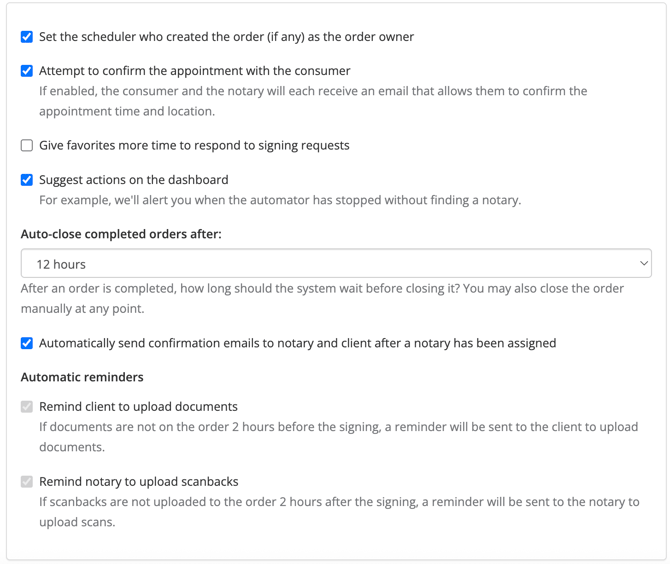
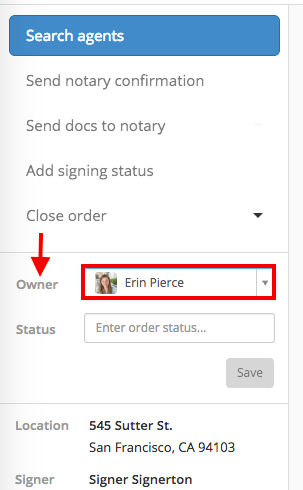
Set the scheduler who created the order (if any) as the order owner
If this box is checked, Snapdocs will automatically assign the Admin or Scheduler who created the order as the Order Owner. If the box is unchecked, there will be no owner assigned to an order unless they are manually assigned. Assigning an order owner can be helpful if that person needs to be in the loop on email communication.
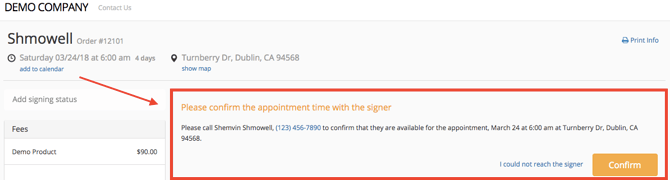
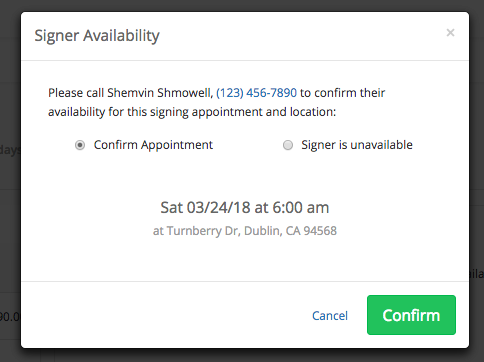
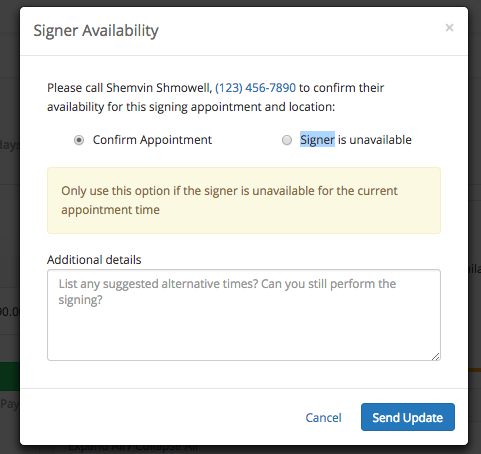
Attempt to confirm the appointment with the consumer
Give favorites more time to respond
If this box is checked, Snapdocs will wait for a longer period of time after contacting a Favorited notary through the Automator. (If a favorite declines the offer, the Automator will immediately move on to the next notary.)
Suggest actions on the dashboard
If this box is checked, Snapdocs will show you helpful tips and actions in the upper right corner of the dashboard.
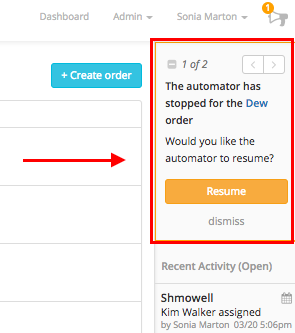
- The Automator has stopped on an order.
- A signing status has not be reported on an order.
- There is an order without docs uploaded and the signing is getting close.
- The docs have not been sent to the notary and the signing is getting close.
- The docs have not been downloaded by the notary and the signing is getting close.
Auto-close completed orders
Automatic reminders
If a client has not uploaded required documents for the order two hours before the signing appointment, the system will automatically send a reminder on the order. The same goes for a notary and scanbacks. If the notary does not have scanbacks uploaded 2 hours after the signing, communication will be sent to the notary on the order reminding them to do so.
Note: Remember to select Save at the bottom to keep all the changes you make!