
Generic signing products and client-specific products.
If you choose Client-Specific Signing Products option, you will be able to add specific signing products on a per client basis. This means that for every client, you can add signing products to their client profile.
To add products:
Step 1: Select Admin in the navigation bar.
Step 2: From the drop down menu, select Clients.
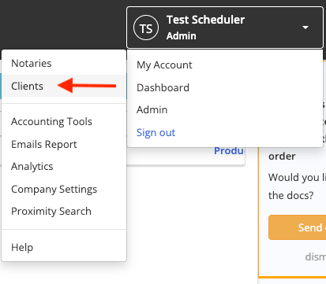
Step 3: Select the client profile you would like to make changes to.

Step 4: In the Signing Products section, select Add a Product.
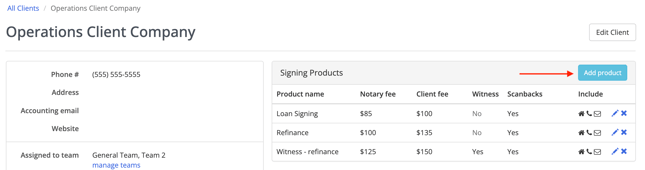
Step 5: A window will open where you can add the details of the new signing product.
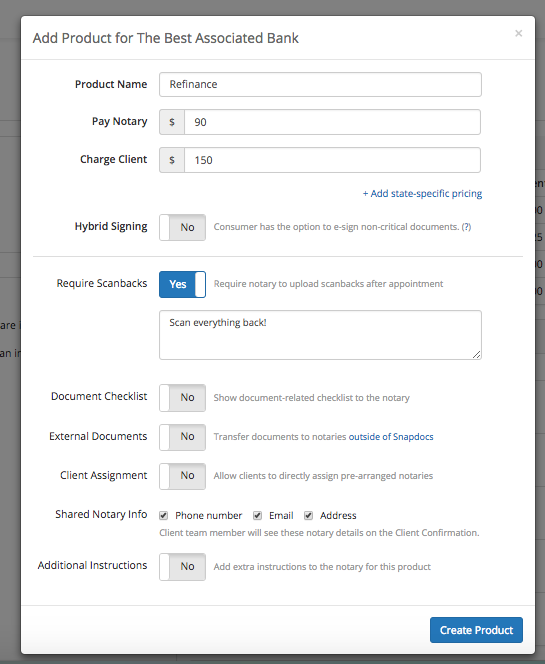
Note: Everything that you add to this signing product here will be specific to not only the client, but to the product as well. Any instructions you add here will pre-populate on all orders with this product. This option is great if you have clients with very specific instructions both for their company and for each product.
Step 6: When finished, select Create Product.
Step 7: After adding signing products to all of your clients you will see this information on the Order Create page, as will your client.
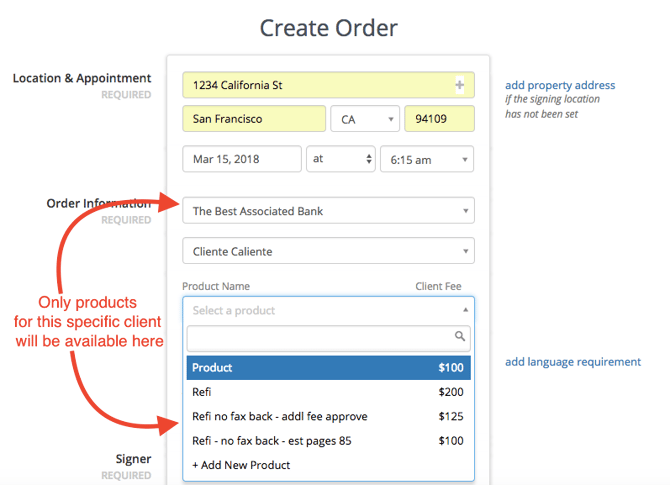
Tip: We show the most commonly used products first so users don't have to scroll and search as much for their favorite products when creating orders.
Step 8: To edit a client specific product, select into the client and then on the pencil icon next to the product. To delete the product, select x.
