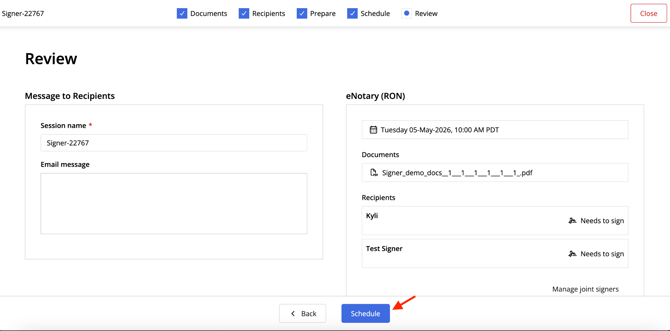
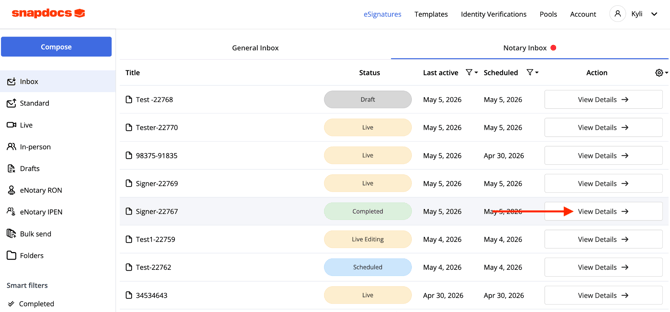
You can use the link from the order or open your Snapdocs RON account and find the file in your inbox.
Step 1: Select View Details.
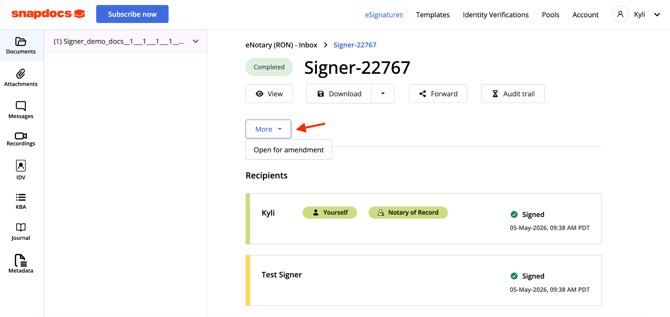
Step 2: Select More and then Open for amendment.
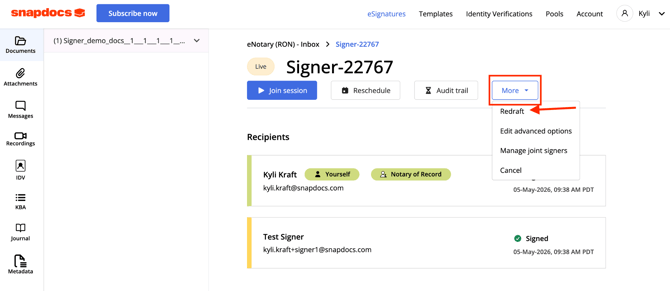
Step 3: Select More and then Redraft.
A pop up will appear asking you to confirm that you want to redraft. Select Confirm.
Note: Redrafting the eSignature package will allow you to make changes to the package. However, all signers that have signed will to provide their final acceptance once again.
Step 4: Select Continue editing.
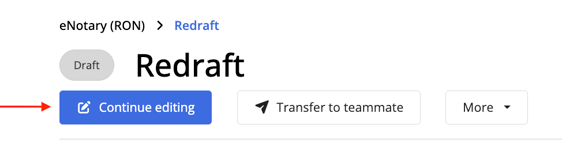
Step 5: It will take you back to the beginning of composing a signing. Select Next or make any changes needed on each page including adding or editing recipients.
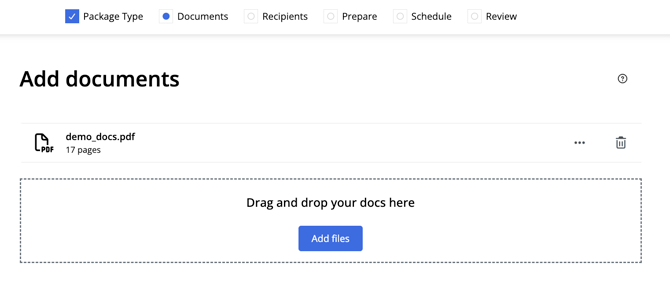
Remove the old document if need. Add new documents if needed by dragging and dropping files or selecting Add files.
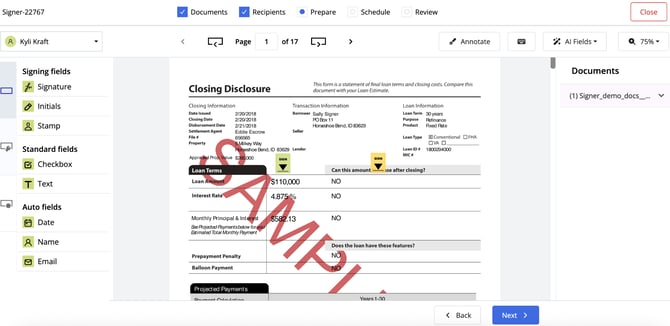
Once in the Prepare tab, correct any document errors as needed.
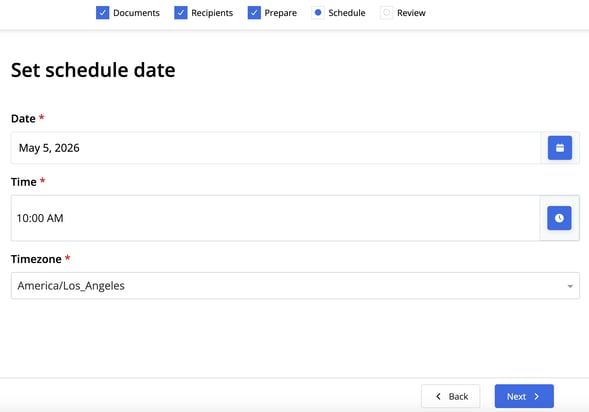
Step 6: If you need to meet with the signer to make these corrections, you can set a new signing time here. We will automatically send an email to the signers letting them know about the new time with a link to the signing.
Step 7: Once done with edits and updates, select Schedule.