Important: Please reach out to Snapdocs support or your customer success manager to enable RON.
RON Provider Options Available
1. Snapdocs RON (integrated) - Fully integrated with Notary Connect
2. Proof - Third-party provider (off-platform)
3. NotaryCam - Third-party provider (off-platform)
Client Enablement
Step 1: Go to your client list.
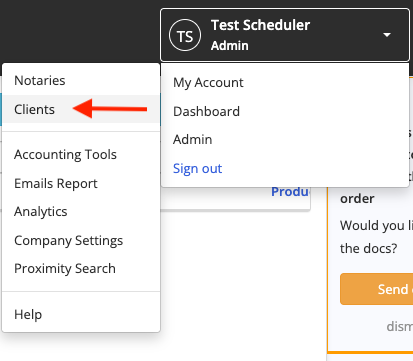
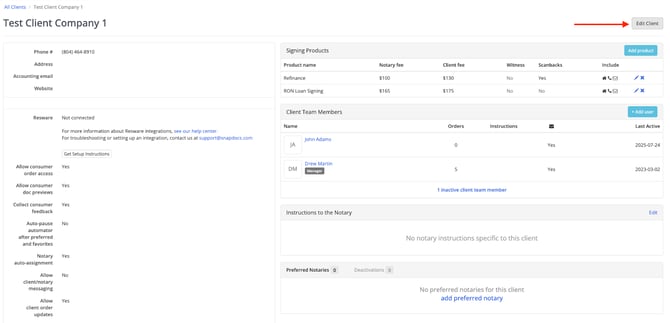
Step 2: Select a client within the list. Once you’ve opened the client account, select Edit Client.
Step 3: Scroll down to the RON section and toggle RON on.
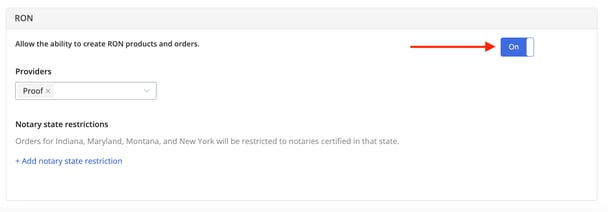
Step 4: Select the RON provider(s) that the client is okay with the notary using.
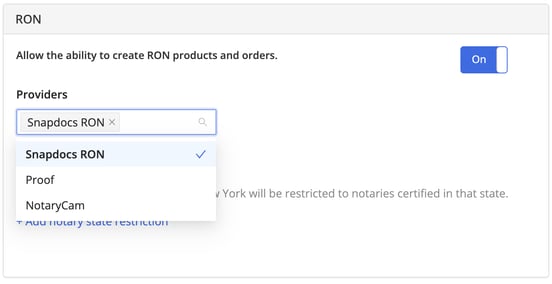
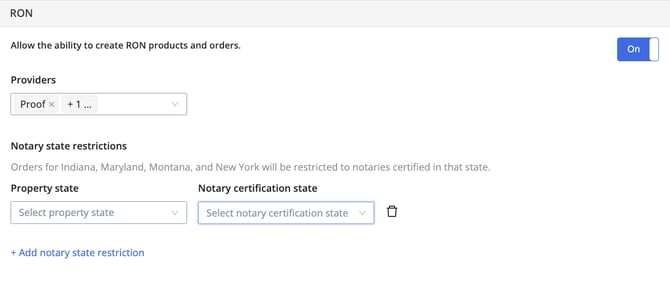
Step 5: You can add any other state restrictions required by the client.
Note: Notaries must be certified in the state of Indiana, Maryland, Montana, and New York to complete RON signings in those property states.
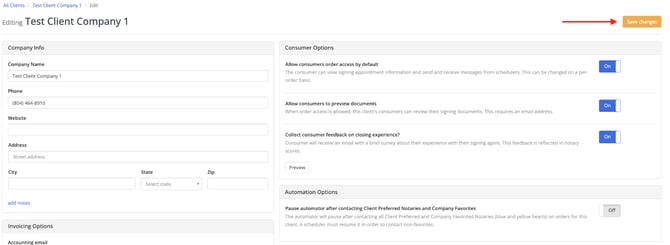
Step 6: Scroll to the top of the page and select Save changes.
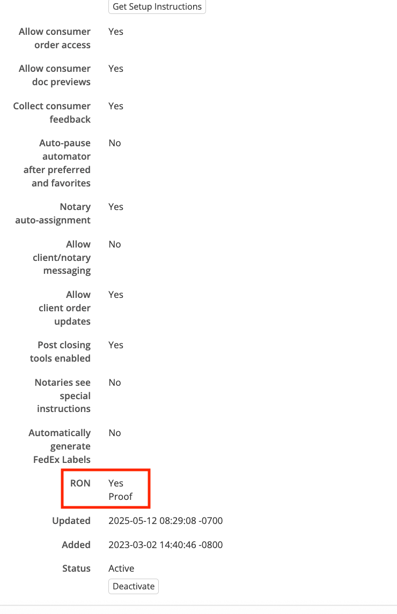
Step 7: Once you save, you will see RON listed in the overview section, as well as, the providers and notary state requirements.
Product Enablement
Once RON is turned on at the client level, it must be turned on at the product level.
Step 1: Select to edit or add a product from a client with RON enabled. RON can be used with generic or client specific products.

Step 2: Toggle RON on. If you do not see the RON toggle, this means that RON has not been turned on at the client level first.
Step 3: Select a RON provider. There must be a RON provider selected and you are only able to select one provider per product. You will need to create an additional product if you want to use more than one RON provider.
You will also have the option to require the signer to provide a witness at the signing. If this is toggled on, we will add communication to the signers notification and order page that a witness is required. We will also notify the notary to make sure the signer provides a witness.
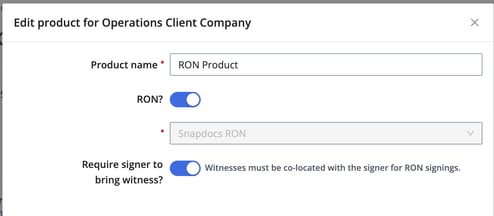
Step 4: Select Save Product.
Generic Products
Clients with RON enabled will be able to view and select any RON product, but they will receive an error if they attempt to use a product with a RON provider that is not enabled in their client settings.
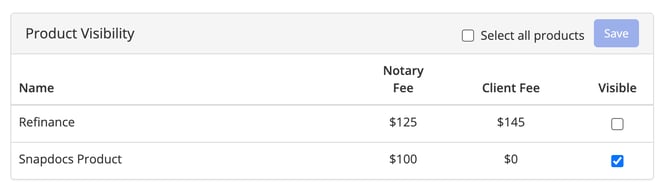
If you would like to prevent clients from seeing specific products, please reach out to your customer success manager or our support team to enable Product Visibility. This will allow you to select which products you want to be visible to each client within client settings.