Adding Witness Requirement & Fees
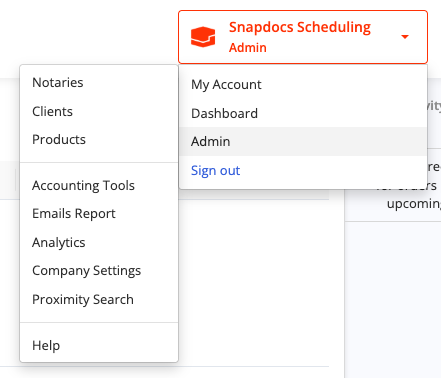
Step 1: If you have generic products: Select your name box in the upper right hand corner in Snapdocs. Hover over the Admin option, then select Products, and then search for and choose the product that you want to edit.
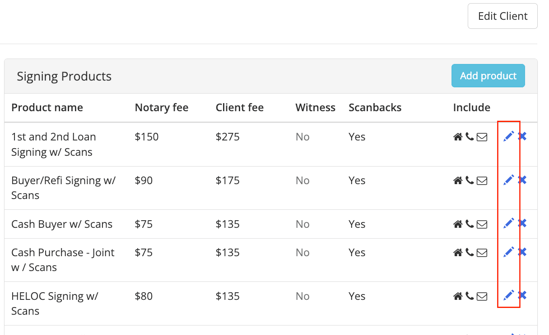
If you have client specific products: Select your name box in the upper right hand corner in Snapdocs. Hover over the Admin option, then select Clients, and then search for and choose the client office that you want to edit. Finally, select the pencil icon to edit each product.
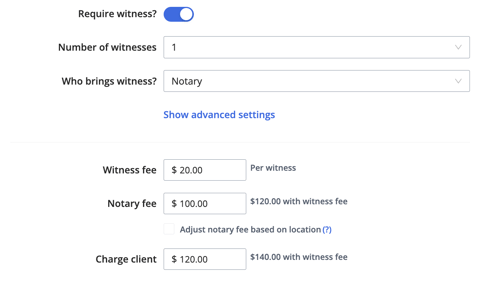
Step 2: Once you have the product you want to edit open, scroll down to the witnesses section. If you want witnesses, switch the flip to on. It will turn blue.
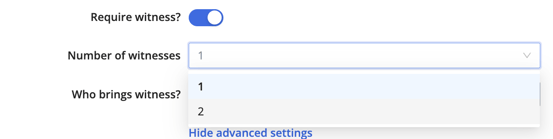
In the Number of Witnesses field, specify how many witnesses are required for this signing.
In the Who brings witness? field, specify who is responsible for providing them, either the notary or signer.
- Please note: RON transactions require the signer to bring the witness(es) for Real Estate closings and Estate Planning packages (except when the property state is Florida).
- If the notary is responsible for bringing the witness(es), you can specify a fee per witness.
- This fee will be added to both the notary fee and the client charge (outlined in the helper text to the right of each fee/charge)
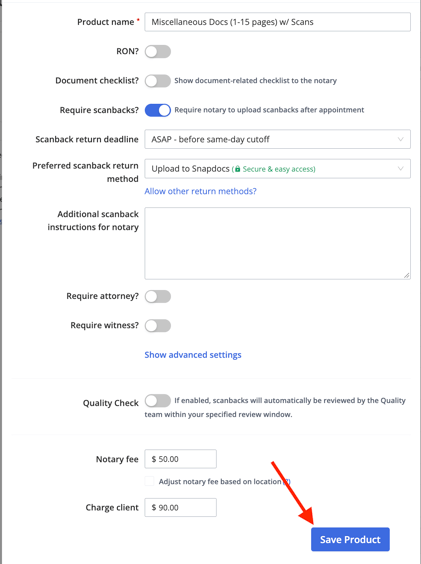
Step 4: Whether you are marking witnesses as required or not, please always select Save Product at the bottom of the edit product form to ensure your updates are saved.
Order-Level: How are witness requirements displayed
Note: Witness requirements are not editable on the ‘create order’ form.
Communication to Notary
Before a notary can mark themselves available for a signing, they must acknowledge the witness requirements. The acknowledgement message will differ based on who is responsible for bringing the witness (Notary or Signer), and for mobile vs. RON.
Examples from a RON order are shown below.
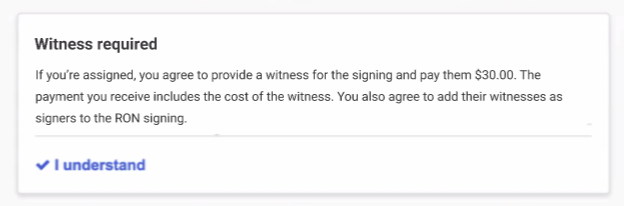
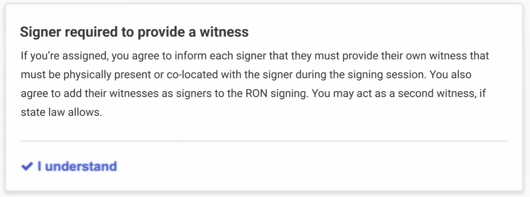
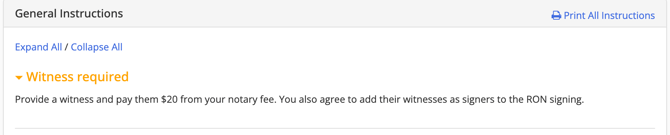
Additionally, notaries will see information about the witness requirement and fee to be paid to the witness on the order page.
Communication to Signer
If Consumer/Signer Access is turned on for the order, the signer will receive information about any witness requirements via email. This same information will also be visible on the order page.
For both RON and mobile, the signer will be instructed to have the witness co-located.
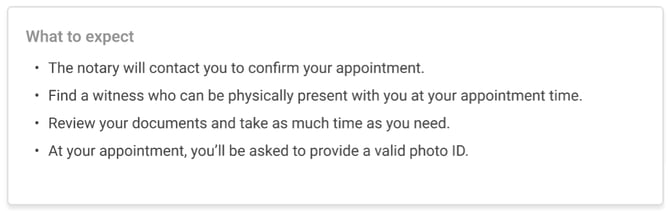
Signer ‘What To Expect’ | Signer Required to Bring Witness(es)