
Note: If this is your first time logging in with MFA or you are trying to reset your MFA you will need to follow the instructions here instead.
Step 1: Navigate to your login page for Snapdocs. The specific URL depends on your individual company, it is important to confirm with your Snapdocs Admin that you are using the correct URL.
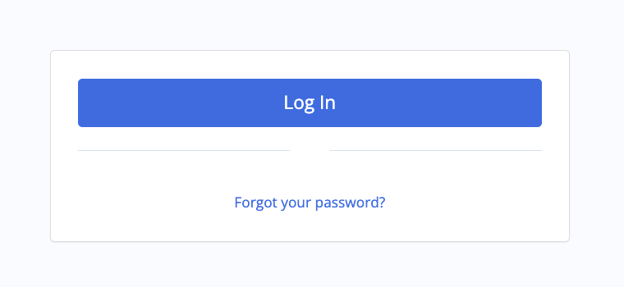
Step 2: Select the Log In button.
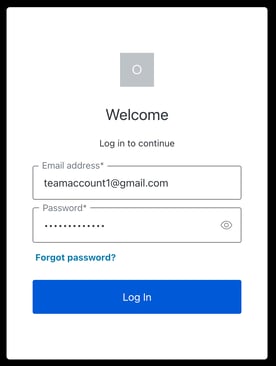
Step 3: Enter your email address and password into the text boxes. Select Log In.
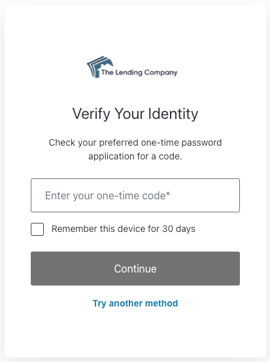
Step 4: You will then be asked to verify your identity by entering in a one-time code sent to the method that you chose when setting up your account.
Tip: Selecting a voice call upon set up will give you the option to select between a voice call or text every time. We recommend choosing the phone call option the first time so that a text message is not automatically sent every time someone attempts to log in if you share the email address.
Selecting to receive the code via text upon set up will result in a text automatically sent to that phone number each time. That said, you will have the option to “try another method.”
Tip: If you do not receive a code or cannot locate your app, you can select Try another method. This will then give you the SMS method or you can use the recovery code that was provided to you when you first set up your account’s MFA method.
Via Authenticator app
This code will be sent to your authenticator app. Find the Snapdocs account on your app and enter the code provided into the “Enter your one-time code” text box.
Via SMS
Please note that to be successful, your number must be a US number and be able to receive SMS. If not, please choose the authenticator app method.
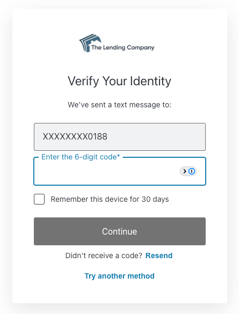
A code will be sent to your mobile device via SMS. Enter the code provided into the “Enter the 6-digit code” text box.
Step 4: Select Continue.
Tip: If you are on a private device, you can check the “Remember this device for 30 days” box so that you do not have to enter in a code every time you go to login.
You are now logged into your account. If you run into any problems and need assistance please contact the Snapdocs support team at support@snapdocs.com or (833) 762-7362.