
Issues
- Identity verification (IDV)
- Knowledge Based Authentication (KBA)
- Signers unable to join session | IP Address Issues
- Signers unable to join session | Can’t Find Link or Link Expired
- Signers unable to join session | Other Issues
- Camera & microphone technical issues
- Expired links and document access
- Notary subscription account access issues
- Multiple signer management
- Browser and device compatibility
- Session amendment and editing
Identity verification (IDV)
Users frequently encounter problems with the identity verification process, including:
- Discomfort with selfie verification requirements
- Verification flagged as "high risk" when photos appear to be properly submitted
- Confusion about needing both front and back of ID
- Questions about KBA (Knowledge-Based Authentication) configuration
How to troubleshoot:
- Ensure device and browser are up to date with the latest versions
- Ensure ID is clear (not damaged) and is a proper form of ID
- Attempt using a different device or browser
- If still unresolved, reach out to support@snapdocs.com
Knowledge Based Authentication (KBA)
The system requires sufficient records like credit history, property records, or vehicle registrations to generate questions. If these are limited, no new questions can be created even after the lockout period expires. If a borrower keeps getting “no KBA Generated” and they only had enough information to generate 5 questions total and already used them, they would be out of questions. This happens when there isn’t enough personal data to generate the minimum required questions, or when all available knowledge-based questions were already asked.
Some signers have difficulty during the KBA portion including:
- Questions about KBA (Knowledge-Based Authentication) configuration
- Not having enough time or genuinely not knowing the answers (failing KBA)
- Not having enough questions generated
Notary troubleshooting:
- Inform the signer that they have 2 minutes to answer 5 questions, they need to be focused and ready to answer quickly and accurately. If English is not their native language, make sure they know they need to comprehend English well to make the cut-off time.
- If they fail on the first attempt, they can try a different address for the 2nd attempt
- If they fail KBA- tell the signer they cannot try again for 24 hours
- Reach out on the order via comment to let Snapdocs know that KBA was failed
- If this is a non-integrated transaction (just subscription) the notary does have a reset KBA button that can be used at their discretion
Signers unable to join session | IP Address Errors
Notaries and signers may occasionally encounter errors related to their IP address, such as “IPAddress Required”.
Reasons for this error
- User can be using a VPN
- User is on a secured network such as a Work/School WiFi Network that is blocked IP address visibility
- Certain Internet Providers block IP addresses
Notary troubleshooting:
- Diagnose - confirm they’re seeing a notification indicationg their IP address is blocked
- Diagnose - have the signer use this
- If user is using a VPN → ask them to disable the VPN and refresh their page
- If the user is on a secured network (common with school/work WiFi) → please ask if they can use their phone’s hotspot, or get onto another network.
- If user is using Verizon mobile/cellular data → this sometimes masks IPs; ask them to switch to wifi
Signers unable to join session | Can’t Find Link or Link Expired
Signer cannot find the email inviting them to join the RON session.
Notary troubleshooting:
- Make sure the email for the signer in Snapdocs RON is correct
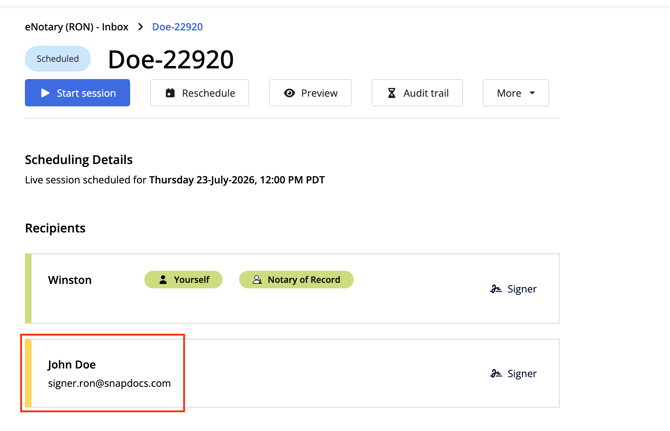
- Tell them to check all inboxes (or use the search bar in their email – search “eNotary” or “Session Scheduled”)
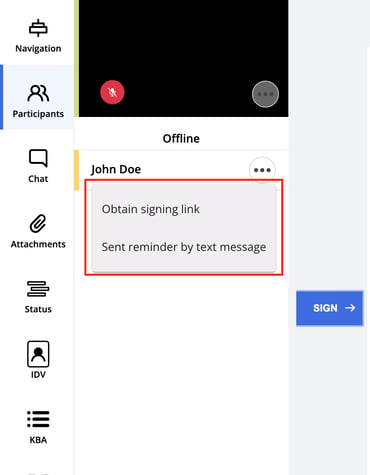
- If still unable to find the email or join from the link in the email → you can send link via text from inside the session
- Ensure the link is still active (not expired)
Signers unable to join session | Other Issues
If the signer cannot access the signing due to a "Browser is Missing a Required Device" error, see Camera & Microphone issues section below.
Otherwise, reach out to support@snapdocs.com
Camera & microphone technical issues
Users may experience issues with camera and audio setup:
- Camera not opening or connecting
- One-way audio problems (notary can hear signer but not vice versa)
- Browser permissions blocking camera/microphone access
- Audio cutting out during sessions
Notary troubleshooting:
- Ask what browser they are using
- Send them link to make sure they gave permission to access camera and microphone: Configuring your camera and microphone in your browser
- Ask if they can try a different device
Expired links and document access
Users frequently encounter issues with expired links:
- Signing links expiring unexpectedly
- Unable to access previously notarized documents
- Document download links no longer working
Notary troubleshooting:
- Resend the link to the signers or update the amount of time before it expires from the transaction
- See Obtaining a Signing Link for Specific Signers
- See Sending signing email reminders
- To get completed package for signer, send them the email with the docs from the transaction Sending your first Live eSignature package
- Ask the signer to check spam, trash, all inboxes, and use email search bar
- Ask the signer to check their downloads
Notary subscription account access issues
Users experience various account access challenges:
- Account blocked after 3 failed password attempts
- Uncertainty about whether they already have an account (emails can only be used per 1 account)
- Fear of losing access when updating email addresses
- Password reset difficulties
Notary troubleshooting:
- After trying 2 times, PAUSE and reset your password:
- Select forgot password, an email of the password reset code is sent
- Find the reset code and copy then paste it into the Password reset verification section
- Select Continue.
- Then you're directed to set up a new password. Select Change password.
- If you failed 3 times are locked the account, reach out to support@pactima.com.
Multiple signer management
Users need guidance on managing complex signing scenarios:
- Scheduling multiple signers at different times
- Managing POA (Power of Attorney) signers
- Switching between signer roles when one person signs as multiple parties
- Re-inviting signers after session completion
Notary troubleshooting:
|
Situation |
Resolution |
More Detail |
|
One or more signers can’t find a link to the session |
Re-send a link to the signer(s) |
|
|
Signers are going to be sharing one device / signing together |
If you know ahead of time certain signers will be co-located and sharing a device, set them up as ‘joint signers’ during Document Tagging step or by accessing the signing in Snapdocs RON Note: each signer will fill out their signatures, then passes the device to the next signer |
Understanding joint signers group
|
|
If you realize multiple signers are co-located and sharing a device during a live session, you can create a Joint Signer Group under ‘more’ on the left-hand navigation Note: each signer will fill out their signatures, then passes the device to the next signer |
||
|
One or more signers is not present at the RON session |
Complete the appointment with the signers that are present, then proceed to the “lock for review” step. You will be prompted with a “continue & finish later” button → this will enable you to schedule a follow-up session |
Browser and device compatibility
Technical compatibility issues affect user experience:
- "Browser is Missing a Required Device" errors
- Unsupported browser warnings
- Mobile device compatibility issues
Notary troubleshooting:
- Ensure device and browser are up to date with the latest versions
- Have the signer use a search engine (e.g., Google) to search: “Latest version of [your browser]”. This will give the signer the most up-to-date version
- Attempt using a different device or browser (supported browsers are Google Chrome, Safari, and Firefox; Internet Explorer is NOT supported)
- Ensure device has a working camera and microphone
- If still unresolved, reach out to support@pactima.com
Session amendment and editing
Users need to make changes to sessions:
- Reopening completed sessions for amendments
- Correcting errors after signing
- Adding additional documents to existing sessions
Notary troubleshooting:
- Sessions can be amended up to 36 hours after completion of the session
- Add additional documents to existing sessions through “full editing mode”
- If it’s been more than 36 hours, reach out to support@pactima.com