
For Notaries with Pactima Accounts
Snapdocs RON (formerly Pactima) is now part of the Snapdocs platform. If you are a notary with a Pactima account, you will be redirected from pactima.com/login to your new Snapdocs RON account at signings.snapdocs.com. Please bookmark this new URL.
For Snapdocs Notaries
If you are a member of the Snapdocs Notary Network who receives signing orders from Snapdocs Notary Connect customers, you will continue to access your notary account at app.snapdocs.com
For Notary Connect Customers & Clients (not notaries)
If you are a Snapdocs Notary Connect client, access to your signings remains at app.snapdocs.com. Notary Connect schedulers and admins access remains at [your-company-domain].snapdocs.com. This content is not applicable to Notary Connect clients.
Overview: What’s different now that Snapdocs RON (formerly Pactima) is part of Snapdocs?
Single login credentials – one set of Snapdocs login credentials (email & password), will be used to access any Snapdocs accounts you have signed up for – including Notary Connect and Snapdocs RON.
- Ready to start receiving signings from Snapdocs customers? Log in to Snapdocs RON at signings.snapdocs.com and select “Join our Notary Connect network for more signings” on the left navigation. This will create your Notary Connect account and give you access to both mobile and RON signings from Snapdocs customers through app.snapdocs.com.
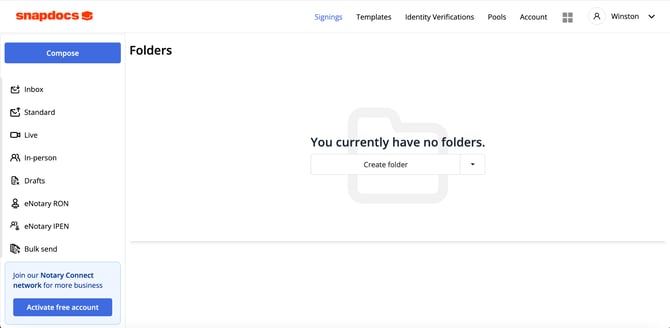
2. Notaries who are part of Snapdocs Notary Network: Your existing notary login credentials (email & password) stay the same when you log in to app.snapdocs.com. You have two ways to work with Snapdocs RON:
-
To receive RON signings from Snapdocs customers, no separate Snapdocs RON for Notary subscription is required. Simply log in to your Snapdocs notary account at app.snapdocs.com and sign up for a free Snapdocs RON account from the new left navigation button.
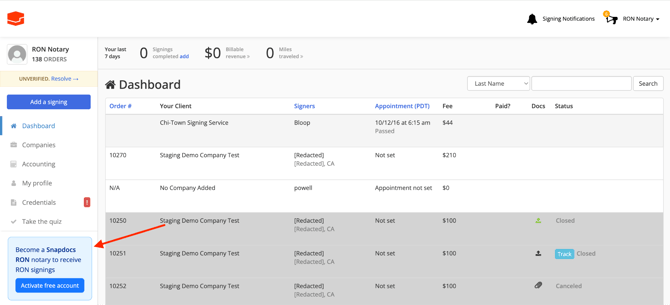
- To create & service your own RON signings (“bring your own signings”), you can upgrade to a Snapdocs RON for Notary subscription after creating your free Snapdocs RON account. Start by selecting the “Activate free account” button in the lower left navigation of Notary Connect.
- This will create your new Snapdocs RON account (to receive RON signings from Snapdocs customers). Once you’ve set up your RON profile, select the “Upgrade your account” button in the lower left navigation of Snapdocs RON.
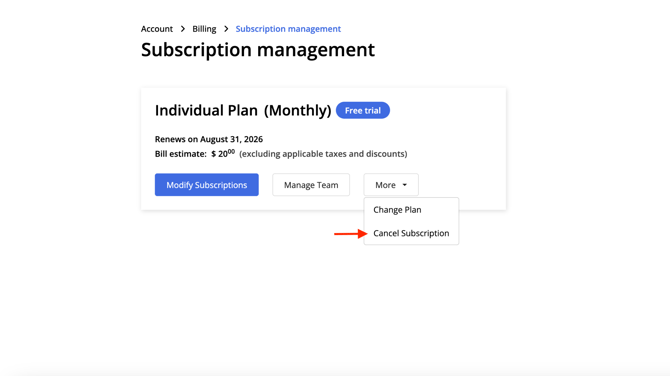
- Select one of two plans to start your 7 day free trial: Individual and Team. You can do an annual or monthly subscription. You’ll enter your credit card information to start the free trial. You can cancel anytime by going into your account → billing → subscription management; there will be an option to cancel your subscription.
3. Notaries who are part of Snapdocs Notary Network AND have a Snapdocs RON account (formerly Pactima): If you used the same email address as your login credentials for both your Pactima and Snapdocs accounts, your Snapdocs credentials (email & password) will now be used to access both Snapdocs Notary Connect and Snapdocs RON. Access your Snapdocs RON signings at signings.snapdocs.com, and your Notary Connect signings (app.snapdocs.com).
-
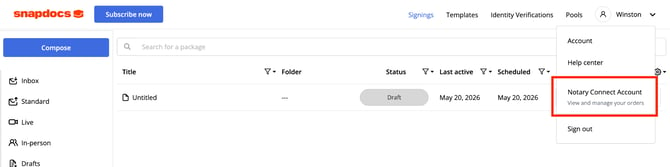
Easy Navigation: When you log into your Notary account at app.snapdocs.com (also called Notary Connect) or your Snapdocs RON account at signings.snapdocs.com, you will switch between your Notary Account and your Snapdocs RON Account via account navigation in the top-right corner.
Notary Connect Portal
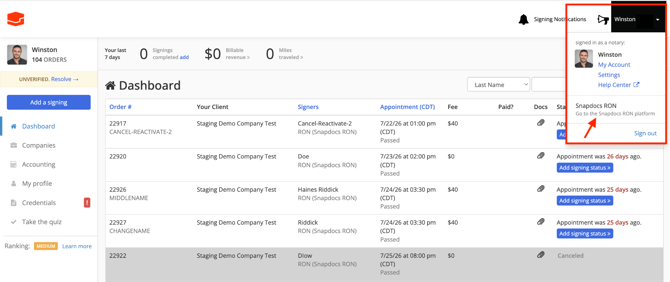
Snapdocs RON Portal
Getting Started: If you’re a notary who is new to Snapdocs Notary Connect & Snapdocs RON, it’s easy!
Option #1: You want to receive signings from Snapdocs customers
Step 1: Join the Notary Network for free at snapdocs.com/join-notary-network to create your Notary Connect account and complete your online profile. Click here to learn more about setting up your account.
Step 2: Activate your Snapdocs RON Account: Log in to your new Notary Connect account at app.snapdocs.com and click the blue button in the navigation. This creates your free Snapdocs RON account, takes you through an onboarding process and helps you set up your RON profile. It’s free and enables you to receive RON signings from Snapdocs customers.
Step 3: Optionally, if you want to create & serve signings you sourced yourself, you can purchase a ‘Snapdocs RON for Notaries’ subscription. Simply Click on the “Upgrade your account” button in the lower left navigation of Snapdocs RON.
Option #2: You want to create and serve your own RON signings
You want to create and serve your own RON signings (“bring your own signings”), but not receive signings from Snapdocs customers.
- Subscribe to Snapdocs RON for Notary here.
Snapdocs RON Training Academy (Self-Guided)
Snapdocs wants every RON signing you serve to go smoothly, with no stressful surprises. We have created a self-guided Snapdocs RON Training Academy to learn the platform at your own pace – the course takes about 1 hour to complete.
To receive Snapdocs RON signings on Notary Connect, you will be required to complete this training. Once you have created an Account on Snapdocs RON, you will receive an email with a link to the training course.
Select the user type that best describes you, and learn more about access your Snapdocs account & signings
- I’m a notary or user on Snapdocs RON (formerly Pactima), and I do not have a Notary account on Notary Connect
- I’m a notary or user on Notary Connect, and I do not have a Snapdocs RON account
- I’m a notary with both a Snapdocs Notary account & a Snapdocs RON (formerly Pactima) account through a subscription
- I’m a notary and brand new to Snapdocs
- I’m a notary or user on Snapdocs RON (formerly Pactima), and I’m also a Scheduler or Admin user on Notary Connect
- I’m a notary or user on Snapdocs RON (formerly Pactima), and I’m also a client user on Notary Connect